April 3, 2024|3 min reading
Stable Diffusion ComfyUI SDXL Setup
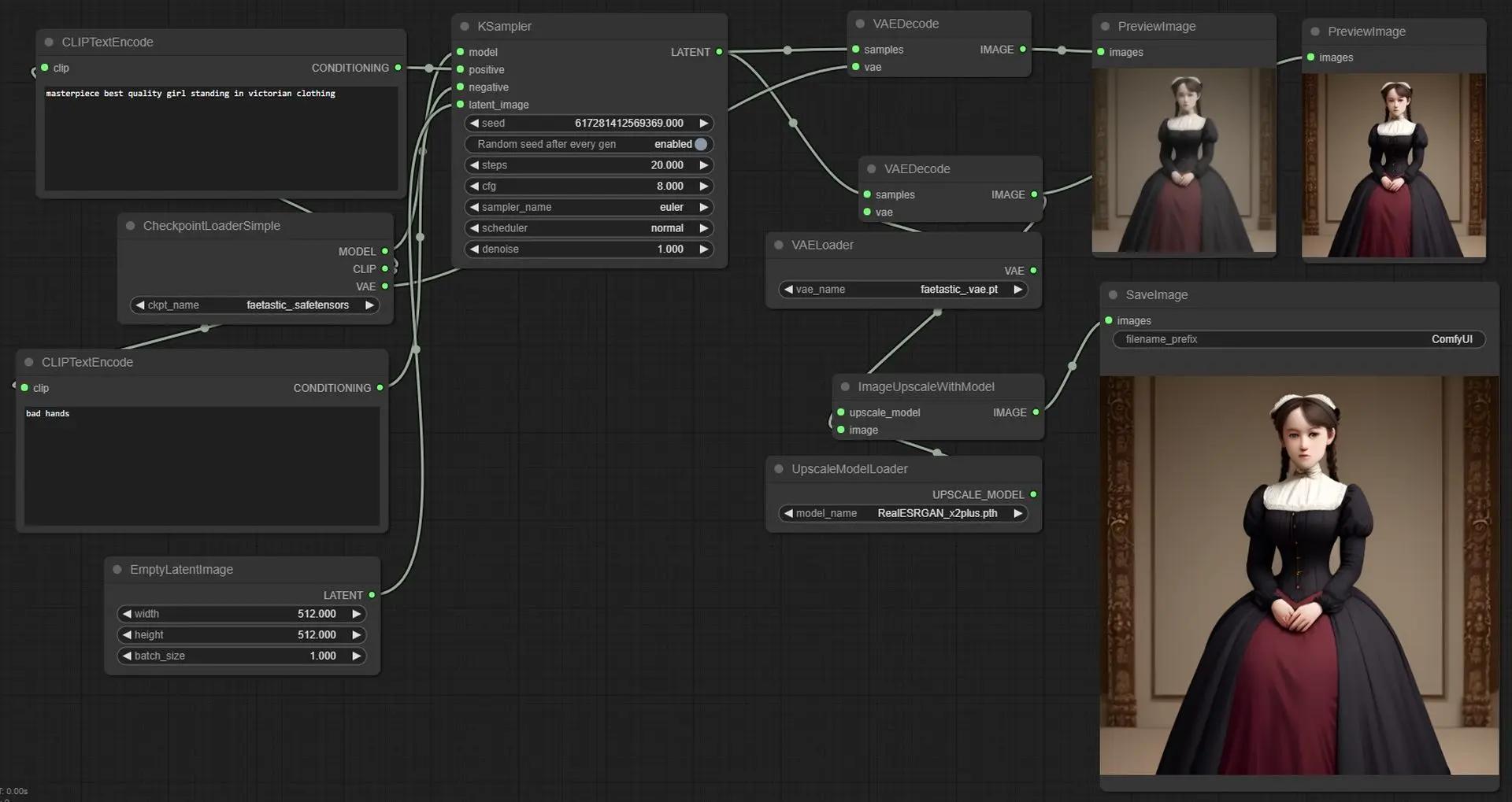
To get started with Stable Diffusion using ComfyUI SDXL, follow these steps for a seamless setup. Make sure you've already downloaded Stable Diffusion.
1. Pre-Download Requirements
Before proceeding, ensure you have the following installed on your system:
2. Download ComfyUI
If you are using Windows with an NVIDIA GPU, head directly to the 7-Zip download.
Download ComfyUI from the official repository here.
On the GitHub page, look for a "Code" button. It's usually a green button located towards the top-right of the page. Click on it.
In the dropdown menu that appears, you have a few options:
- If you are familiar with Git, you can clone the repository using the provided URL.
- If you prefer to download a zip file, click on the "Download ZIP" option. This will download a compressed archive of the repository to your computer.
The GitHub repository for ComfyUI is well-crafted. In case of any issues during installation, it's recommended to consult the README, which provides detailed installation instructions for various operating systems, including macOS and Linux.
Great job so far! Now, let's set up ComfyUI.
3. Set Up The Models
Set your models by placing them directly in this path within the ComfyUI directory:
ComfyUI_windows_portable\ComfyUI\models\checkpoints
If you don't have a model, download one from Civit AI.
4. Configure Paths
Important: Navigate back to the root folder and locate the file named extra_model_paths.yaml.example. Remove the ".example" extension from the file name. Next, open extra_model_paths.yaml (you can use Notepad for this) and configure the paths for Stable Diffusion and the models. You have the option to either set a path to a pre-existing models in the stable diffusion folder (set in the stable diffusion guide) or utilize the models that we set just before in comfyUI.
Route to the AI generator:
base_path: C:/xxxx/path/to/stable-diffusion-webui/
models:
checkpoints: C:/xxxxxx/models/Stable-diffusion
5. Run ComfyUI
To run ComfyUI, navigate to the root folder in ComfyUI_windows_portable and execute:
- For CPU: Run run_cpu
- For NVIDIA GPU: Run run_nvidia_gpu
That's it! You've successfully set up ComfyUI SDXL with Stable Diffusion. Start generating and exploring creative possibilities.
Bonus: Don't forget to use the correct ckpt in the load checkpoints part

Explore more

50+ Best AI Directories to Submit Your Tool (2025 Guide)
I submitted my AI tool to 50+ directories. Here's which ones actually work in 2025 - the complete list with DA scores, f...

10 Best AI Roleplay Apps in 2025 (Uncensored & Free Options)
Discover the best AI character chat apps for roleplay & companionship in 2025. Compare Flirton, Character.AI, Replika + ...

Unleashing the Power of Build with Claude: How Claude 3.5 Sonnet Revolutionizes Computer Interaction
Discover the potential of Claude 3.5 Sonnet's desktop automation and computer use tools for enhanced productivity.